Edit PDF

Edit PDFs on iPhone, iPad, and Mac.

PDF Editor, PDF Book Reader® lets you add text, images, photos, and shapes to any PDF, format your text, and rearrange pages — then save the result as a new file or over the original.

Works with the PDFs you already have, including files in iCloud Drive.

Last updated November 2026.

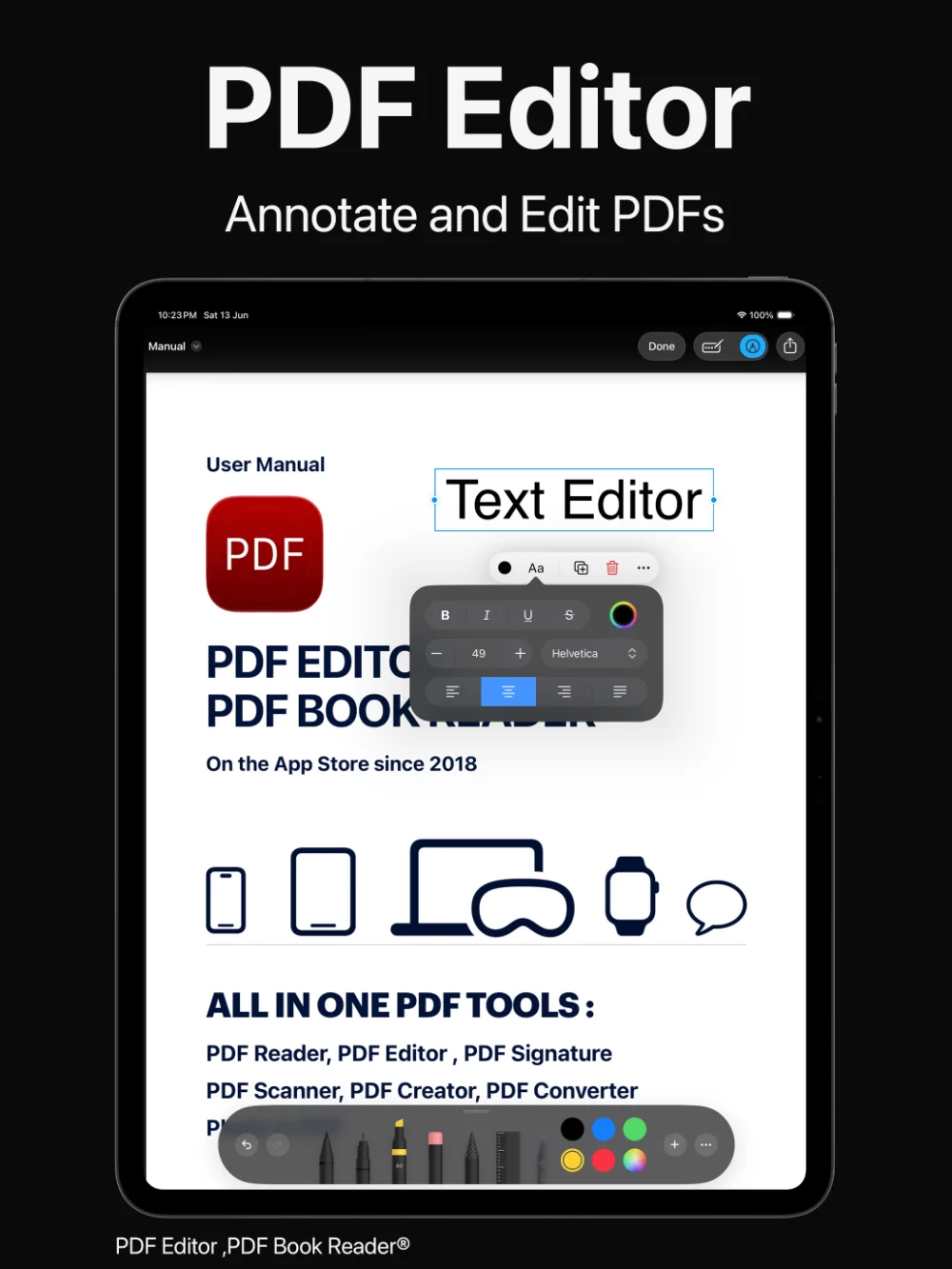
PDF Editor, PDF Book Reader® on iPad: annotate and edit PDFs with the text editor
Add
Text boxes, images, photos, and shapes
Pages
Rotate, crop, duplicate, insert, delete, reorder
Saving
Save as a new file or replace the original
Available on
iPhone, iPad, and Mac

Text

Add text anywhere on the page.

Place a text box wherever you need it — to correct a detail, label a diagram, or add information that is missing from a document.

Choose the font, size, color, and alignment, and change the background color of a text box so it stands out or blends in with the page.
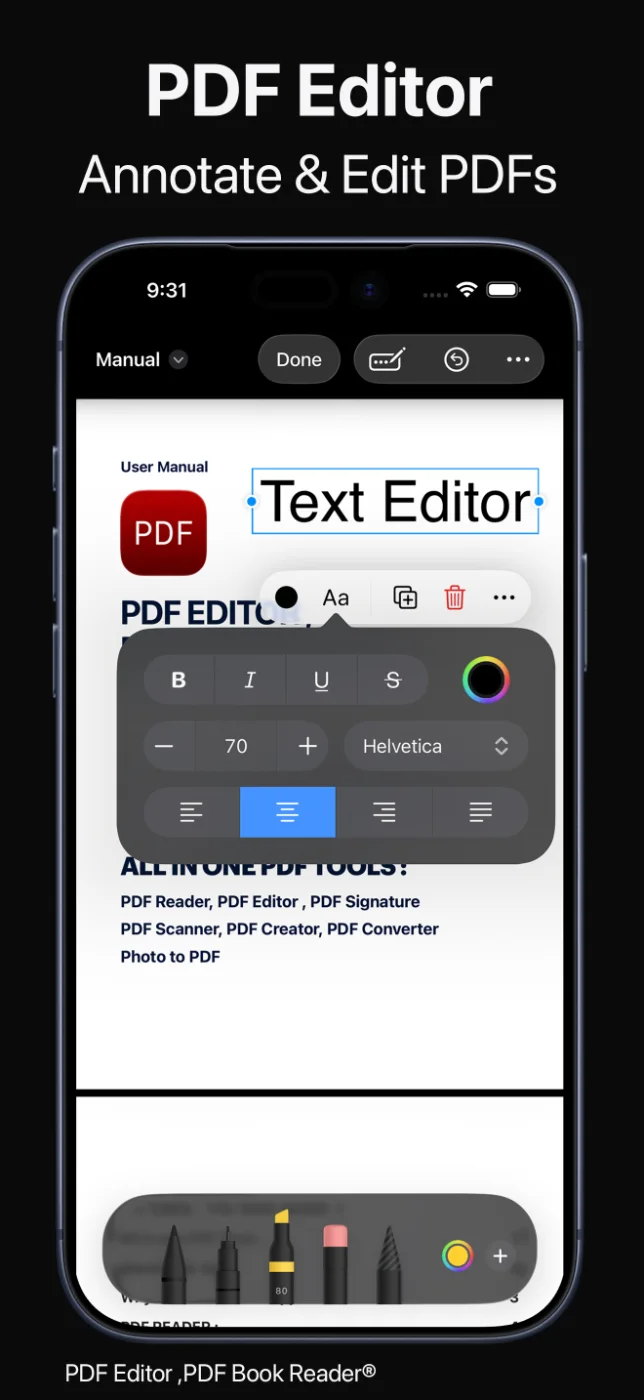
Formatted text, exactly where you put it.

PDF Editor, PDF Book Reader® on iPhone: text editor with font and color options

Images and shapes

Add images, photos, and shapes.

Insert images and photos into a PDF, such as a logo, a product photo, or a picture of a receipt.

Draw shapes at any position on the page and pick their colors from a palette to highlight areas or build simple diagrams.

Visual edits without leaving the document.

Pages

Rotate, crop, duplicate, and reorder pages.

Fix a sideways scan by rotating its page, crop or duplicate pages, insert new or scanned pages, delete pages you no longer need, and reorder pages so the document reads correctly.

Page tools work alongside reading and annotation, so you can tidy a document while you review it.

Put every page where it belongs.

Save and share

Keep the original, or replace it.

When you finish editing, save your changes to a new PDF or replace the existing file — you decide.

Share the edited document through AirDrop, Messages, Mail, and other apps, keep it in sync with iCloud, or lock the PDF to help protect sensitive information.

Your edits, saved the way you want.

How it works

Edit a PDF in four steps.

  1. Open the PDF

    Open a document from your Library, from the Files app, or from iCloud Drive.

  2. Choose what to change

    Add a text box, an image or photo, or a shape, or open the page tools to rotate, insert, delete, or reorder pages.

  3. Adjust the details

    Set the font, size, and color of your text, and move or resize what you added.

  4. Save and share

    Save as a new PDF or replace the original, then share it or keep it in your Library.

Available tools can vary by device and app version.

FAQ

Edit PDF: common questions.

Quick answers about editing PDFs in PDF Editor, PDF Book Reader®.

Can I edit a PDF on my iPhone?

Yes. PDF Editor, PDF Book Reader® lets you add and format text, insert images, photos, and shapes, and rotate, insert, delete, or reorder pages on iPhone. The same editing tools are available on iPad and Mac.

How do I add text to a PDF?

Open the PDF and add a text box where you want the text to appear. You can choose the font, size, color, and alignment, and change the text box’s background color.

Can I rearrange or delete pages in a PDF?

Yes. You can rotate, crop, duplicate, insert, delete, and reorder pages, and insert scanned pages into a PDF.

Will editing overwrite my original PDF?

Only if you choose to. When you save, you can create a new PDF or replace the existing file.

Can I add images or photos to a PDF?

Yes. You can insert images and photos into a PDF and draw shapes at any position on the page.

Are my documents uploaded to a server?

No. The App Store privacy label for PDF Editor, PDF Book Reader® is “Data Not Collected”, and no account is required. Your documents stay on your device, or in your own iCloud if you choose to sync them.

Is PDF Editor, PDF Book Reader® free?

The app is free to download from the App Store and offers optional in-app purchases: monthly, quarterly, or yearly subscriptions, or a one-time Lifetime purchase. Some features may require a subscription or the Lifetime purchase, and one purchase unlocks the app across your Apple devices.

PDF Editor, PDF Book Reader®

Edit PDFs wherever you are.

Add text and images, rearrange pages, and save your changes on iPhone, iPad, and Mac.