Annotate PDF

Highlight, mark up, and annotate PDFs.

Highlight and underline text, add notes, and write or draw on any PDF with Apple Pencil or your finger. With SharePlay, you can even annotate a document together with someone else in real time.

Made for studying, reviewing contracts, and giving feedback on documents.

Last updated November 2026.

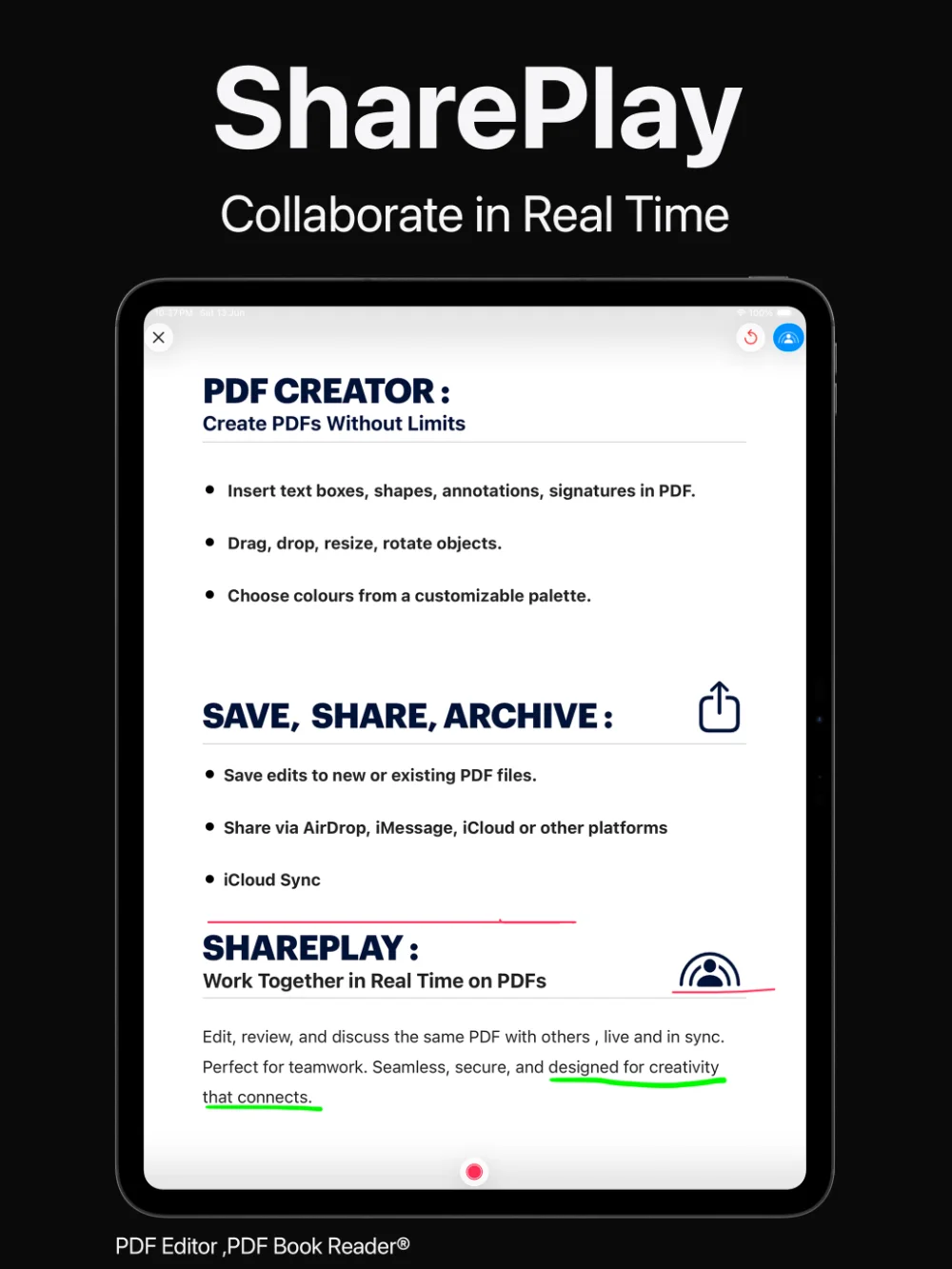
PDF Editor, PDF Book Reader® on iPad: annotated PDF with handwriting and highlights
Mark up
Highlight, underline, and add notes
Draw
Apple Pencil or finger, in any color
Together
Real-time annotation with SharePlay
Available on
iPhone, iPad, and Mac

Highlight and notes

Mark what matters.

Highlight key passages, underline important lines, and add notes beside the text so your thoughts stay with the document.

Bookmarks help you return to the pages you marked, and Apple Intelligence page summaries can be saved as notes on supported devices.
Your reading, with your thinking attached.

Apple Pencil

Write and draw by hand.

Use Apple Pencil — or your finger — to handwrite notes, circle details, underline, and sketch directly on the page in any color.

It is a natural way to work for students, researchers, and anyone who prefers pen and paper, while everything stays organized digitally.

Handwriting, drawing, and highlighting in one place.

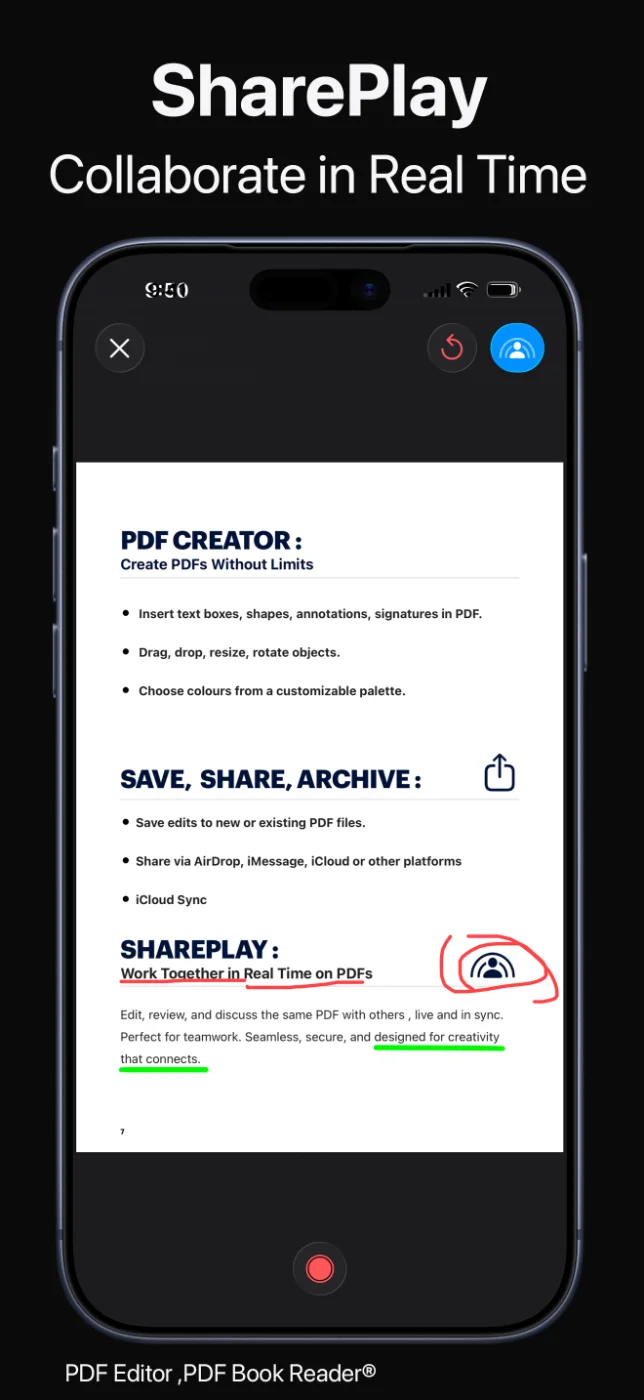
SharePlay

Annotate together in real time.

Start SharePlay to review a PDF with someone else. You can read, discuss, and annotate the same document together, live.

It is useful for going through a contract, a lesson, or a project document without sending files back and forth.

One document, reviewed together.

PDF Editor, PDF Book Reader® on iPhone: collaborating on a PDF in real time with SharePlay

Find your notes

Search what you wrote.

Full-text search looks inside your PDFs and highlights the matching terms, so you can find a passage quickly.

On iOS 27, search also includes your handwritten notes.

Find it again, even when you wrote it by hand.

How it works

Annotate a PDF in four steps.

  1. Open the PDF

    Open the document you want to review from your Library or the Files app.

  2. Pick a tool

    Choose highlight, underline, notes, or a pen, and select a color.

  3. Mark up the page

    Annotate with Apple Pencil or your finger, or add notes to passages.

  4. Share or collaborate

    Save your annotations, share the PDF, or start SharePlay to annotate together.

Available tools can vary by device and app version.

FAQ

Annotate PDF: common questions.

Quick answers about annotating PDFs in PDF Editor, PDF Book Reader®.

Does PDF Editor, PDF Book Reader® support Apple Pencil?

Yes. You can write, draw, underline, and highlight on PDFs with Apple Pencil. You can also use your finger.

Can I highlight and add notes to a PDF?

Yes. You can highlight and underline text and add notes to any PDF.

Can two people annotate the same PDF at the same time?

Yes. With SharePlay, you can review and annotate a PDF together with someone else in real time.

Can I search my handwritten notes?

Yes, on iOS 27. Full-text search across your PDFs includes handwritten notes on iOS 27.

Can I choose annotation colors?

Yes. You can draw and mark up PDFs in any color.

Are my documents uploaded to a server?

No. The App Store privacy label for PDF Editor, PDF Book Reader® is “Data Not Collected”, and no account is required. Your documents stay on your device, or in your own iCloud if you choose to sync them.

Is PDF Editor, PDF Book Reader® free?

The app is free to download from the App Store and offers optional in-app purchases: monthly, quarterly, or yearly subscriptions, or a one-time Lifetime purchase. Some features may require a subscription or the Lifetime purchase, and one purchase unlocks the app across your Apple devices.

PDF Editor, PDF Book Reader®

Make every document your own.

Highlight, write, draw, and annotate PDFs with Apple Pencil or your finger — alone or together with SharePlay.