Fill in any PDF form — applications, registrations, agreements — and add text, dates, and checkmarks directly in the app.
Where a document has no form fields, add a text box and type your information exactly where it belongs.

Fill & Sign
Complete PDF forms, create your signature once, and place it anywhere on the page. Then save the signed PDF and share it — without printing or scanning.
Paper form? Scan it first, then fill and sign the PDF.
Last updated November 2026.
Fill forms
Fill in any PDF form — applications, registrations, agreements — and add text, dates, and checkmarks directly in the app.
Where a document has no form fields, add a text box and type your information exactly where it belongs.
No printer needed.
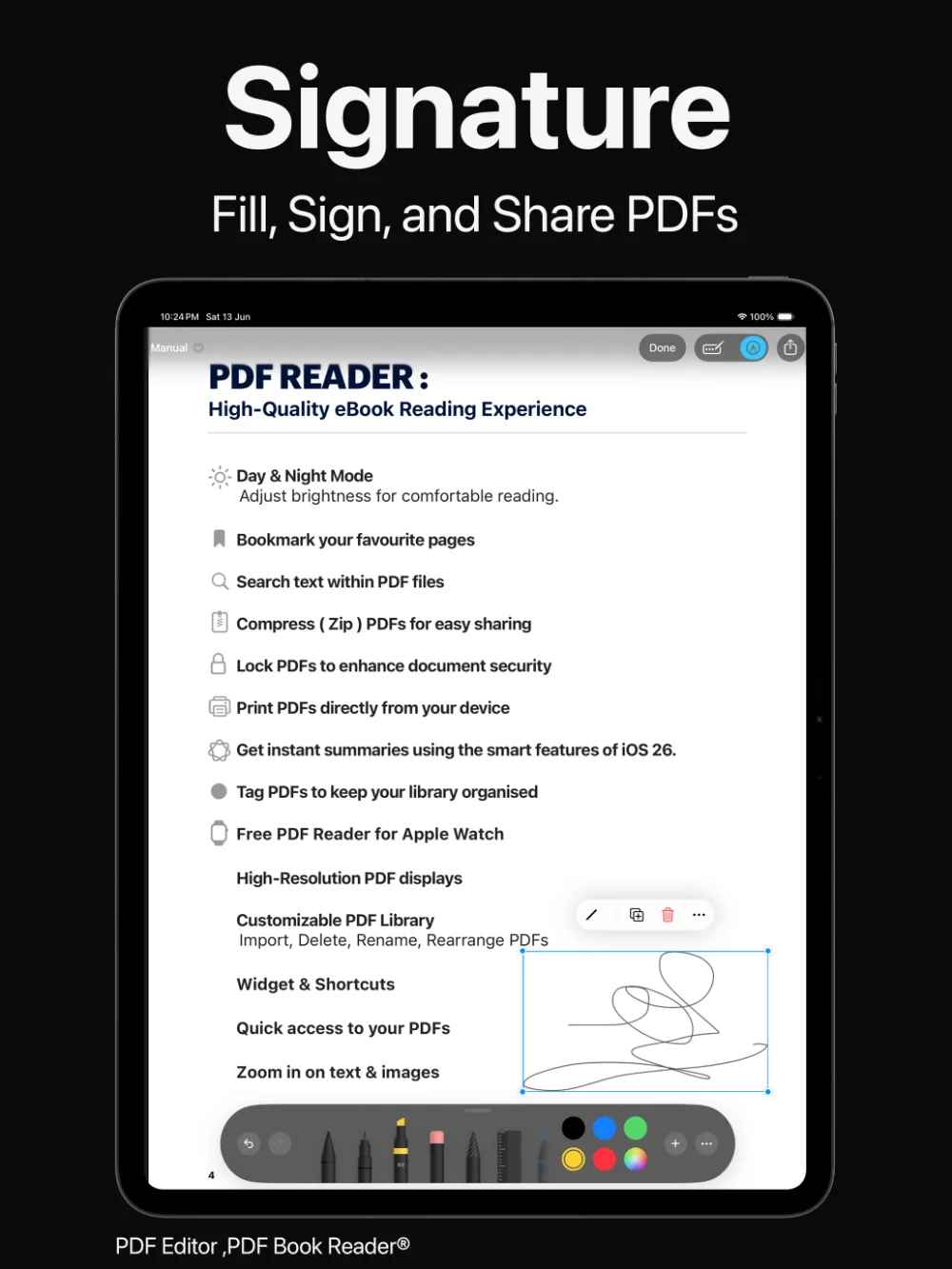
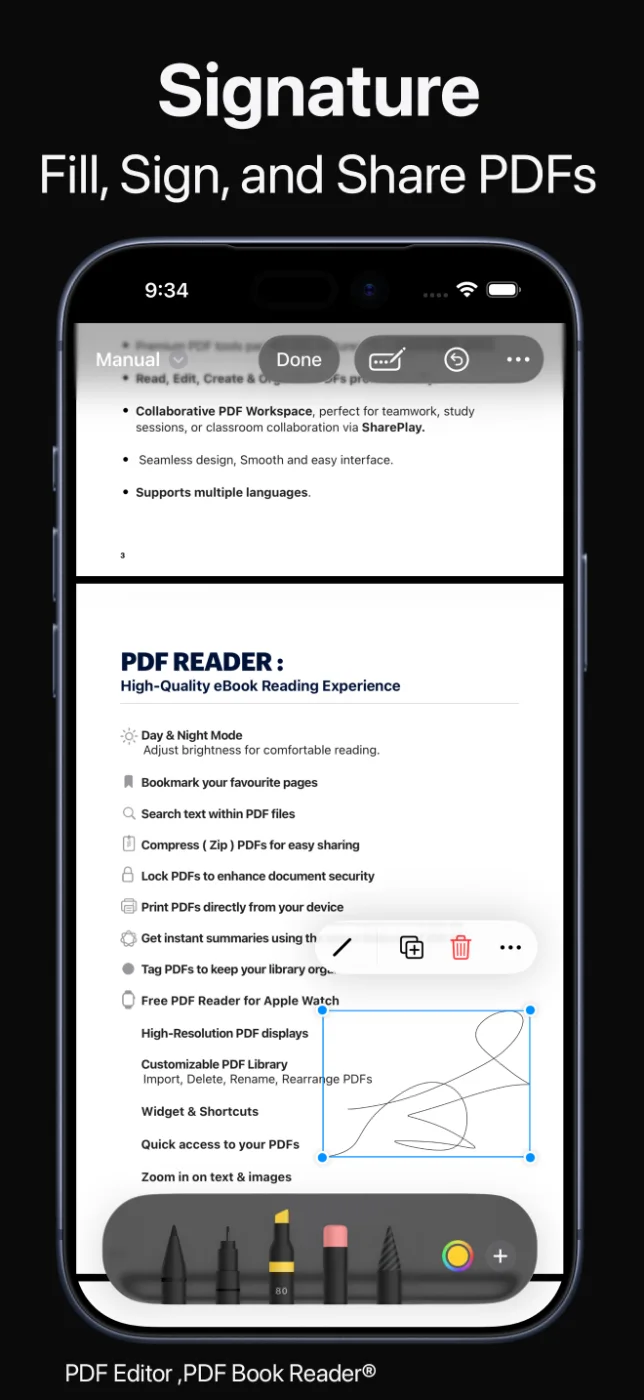
Signatures
Save your signature once — sign with your finger — then drag it to any position on the page and rotate it to fit the space.
Sign contracts, permission slips, invoices, and other documents in a few moments. Need a co-signer? Fill and sign together in real time with SharePlay.
Sign exactly where the document asks.
Paper documents
Use the built-in document scanner to turn a paper form into a PDF, then fill and sign it in the same app.
Save the signed version as a new PDF so the original stays untouched, and share it through Mail, Messages, AirDrop, and more.
Scan, fill, sign, and send.
How it works
Open the PDF, or scan a paper form to create one.
Complete the form, or add text boxes where you need to type.
Create your signature, then drag it into place and rotate it if needed.
Save the signed PDF as a new file or over the original, and share it.
Available tools can vary by device and app version.
FAQ
Quick answers about filling out forms and signing PDFs in PDF Editor, PDF Book Reader®.
Open the PDF in PDF Editor, PDF Book Reader®, create your signature, and drag it to the place where you need to sign. You can rotate it to fit, then save and share the signed document.
Yes. You can fill in PDF forms on iPhone, iPad, and Mac. If a PDF has no form fields, you can add text boxes and type where needed.
Yes. Scan the paper document with the built-in scanner to turn it into a PDF, then add your signature.
Yes. When saving, you can create a new PDF and keep the original file unchanged.
The app adds your signature to the PDF as a visual signature. Whether an electronic signature is accepted depends on the recipient and on the laws where you live, so check if you are unsure.
No. The App Store privacy label for PDF Editor, PDF Book Reader® is “Data Not Collected”, and no account is required. Your documents stay on your device, or in your own iCloud if you choose to sync them.
The app is free to download from the App Store and offers optional in-app purchases: monthly, quarterly, or yearly subscriptions, or a one-time Lifetime purchase. Some features may require a subscription or the Lifetime purchase, and one purchase unlocks the app across your Apple devices.
PDF Editor, PDF Book Reader®
Complete forms and sign documents on your Apple devices, without printing or scanning.
