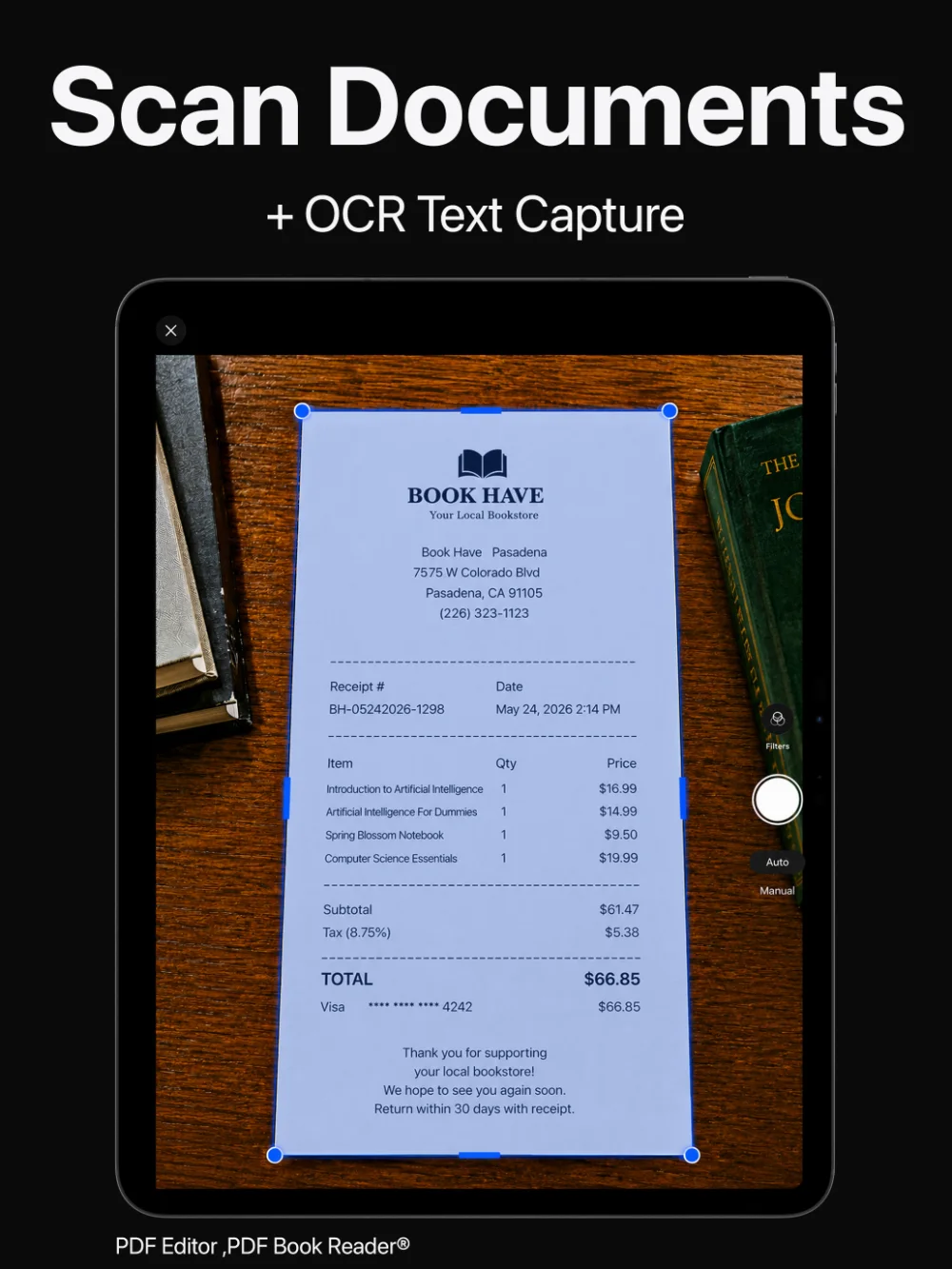
Point your camera at a receipt, a page of notes, or a contract. The scanner detects the edges, crops the page, corrects perspective, and enhances readability, so every scan looks clean.
Scan several pages in a row to create a single multi-page PDF.

PDF Scanner & OCR
Scan receipts, notes, contracts, and multi-page documents with automatic edge detection, then use Instant Text (OCR) to turn scans and images into text you can edit, copy, and search.
Start a scan from Control Center or, on supported iPhone models, the Camera Control button.
Last updated November 2026.
Document scanner
Point your camera at a receipt, a page of notes, or a contract. The scanner detects the edges, crops the page, corrects perspective, and enhances readability, so every scan looks clean.
Scan several pages in a row to create a single multi-page PDF.
From paper to PDF without a flatbed scanner.
Instant Text (OCR)
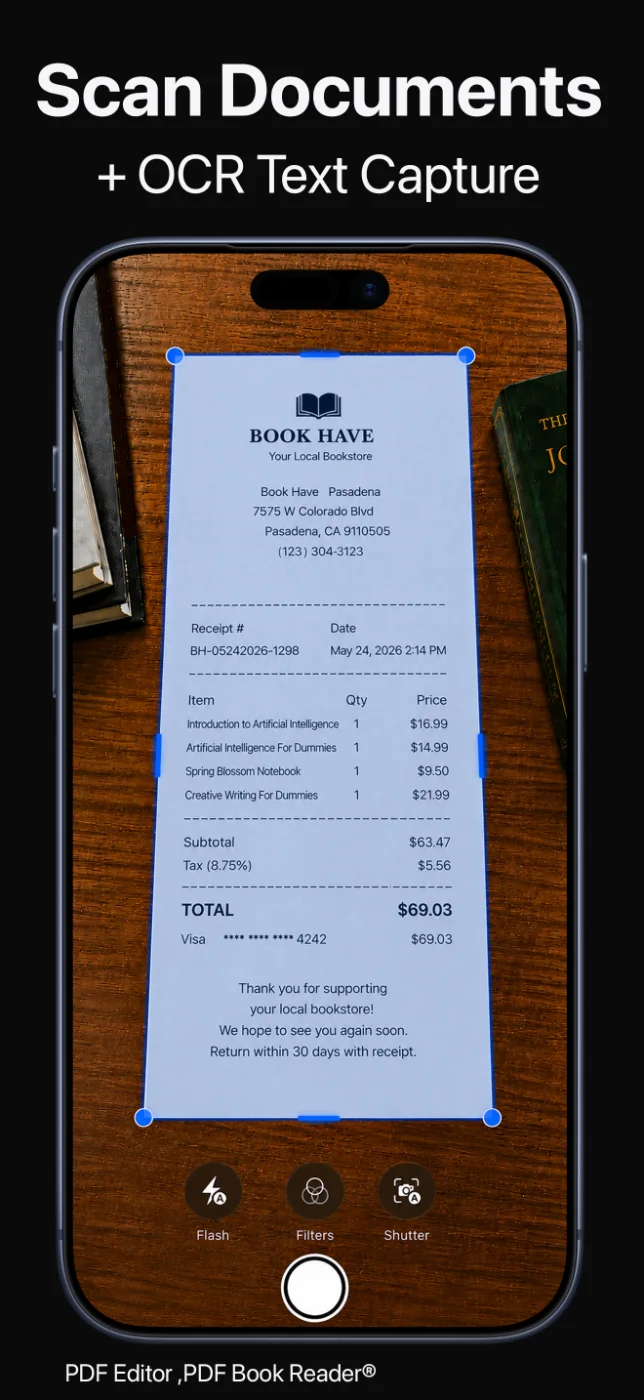
Instant Text uses optical character recognition to convert scans and images into text.
The recognized text is editable, so you can correct it, copy it into another app, or reuse it in your documents.
Text you can actually use.
Faster scanning
Start a scan right from Control Center, so capturing a document takes just a tap.
On iPhone models with the Camera Control button, you can start a scan from Camera Control as well.
Ready the moment the paper is in front of you.
Find and organize
Full-text search looks inside your documents, and on supported devices Apple Intelligence can sort scans into Smart Categories such as Receipts, Tickets, and Contracts.
Add tags, sync with iCloud, and share scans as PDFs or images.
Scanned once. Found every time.
How it works
Open the scanner in the app, from Control Center, or with Camera Control on supported iPhone models.
Hold the document in view. Edges are detected automatically; scan as many pages as you need.
Use Instant Text to convert the scan into text you can edit and copy.
Save the PDF to your Library, add tags, and share it.
Available tools can vary by device and app version.
FAQ
Quick answers about scanning documents and OCR in PDF Editor, PDF Book Reader®.
Open the scanner in PDF Editor, PDF Book Reader® and hold the document in front of the camera. Edges are detected automatically, and you can scan several pages into one PDF.
Yes. Instant Text uses OCR to convert scans and images into text.
Yes. Text recognized with Instant Text is editable, so you can correct it or copy it into other apps.
Yes. You can scan multi-page documents into a single PDF.
Yes. You can start a scan from Control Center and, on supported iPhone models, from the Camera Control button.
No. The App Store privacy label for PDF Editor, PDF Book Reader® is “Data Not Collected”, and no account is required. Your documents stay on your device, or in your own iCloud if you choose to sync them.
The app is free to download from the App Store and offers optional in-app purchases: monthly, quarterly, or yearly subscriptions, or a one-time Lifetime purchase. Some features may require a subscription or the Lifetime purchase, and one purchase unlocks the app across your Apple devices.
PDF Editor, PDF Book Reader®
Scan paper documents to PDF, recognize text with OCR, and keep every scan easy to find.
