Add color tags to PDFs and filter your Library by tag, or assign categories on any of your devices.
Sort by name, date, size, or tag to see your documents in the order that helps you most.

Organize PDFs
Your Library brings your PDFs together. Organize them with color tags and categories, sort and filter in a tap, act on many files at once, and keep everything in sync across your Apple devices with iCloud.
On supported devices, Apple Intelligence can suggest titles, tags, and categories.
Last updated November 2026.
Tags and categories
Add color tags to PDFs and filter your Library by tag, or assign categories on any of your devices.
Sort by name, date, size, or tag to see your documents in the order that helps you most.
Your system, your labels.
Apple Intelligence
On supported devices, Apple Intelligence can suggest a clear title for each PDF, offer up to three tags, and sort documents into Smart Categories such as Books, Manuals, Receipts, Tickets, and Contracts.
You stay in control: suggestions are optional, and your original filenames do not change.
Suggested by Apple Intelligence. Decided by you.
Bulk actions
Select several PDFs to share, tag, categorize, back up, or delete them together.
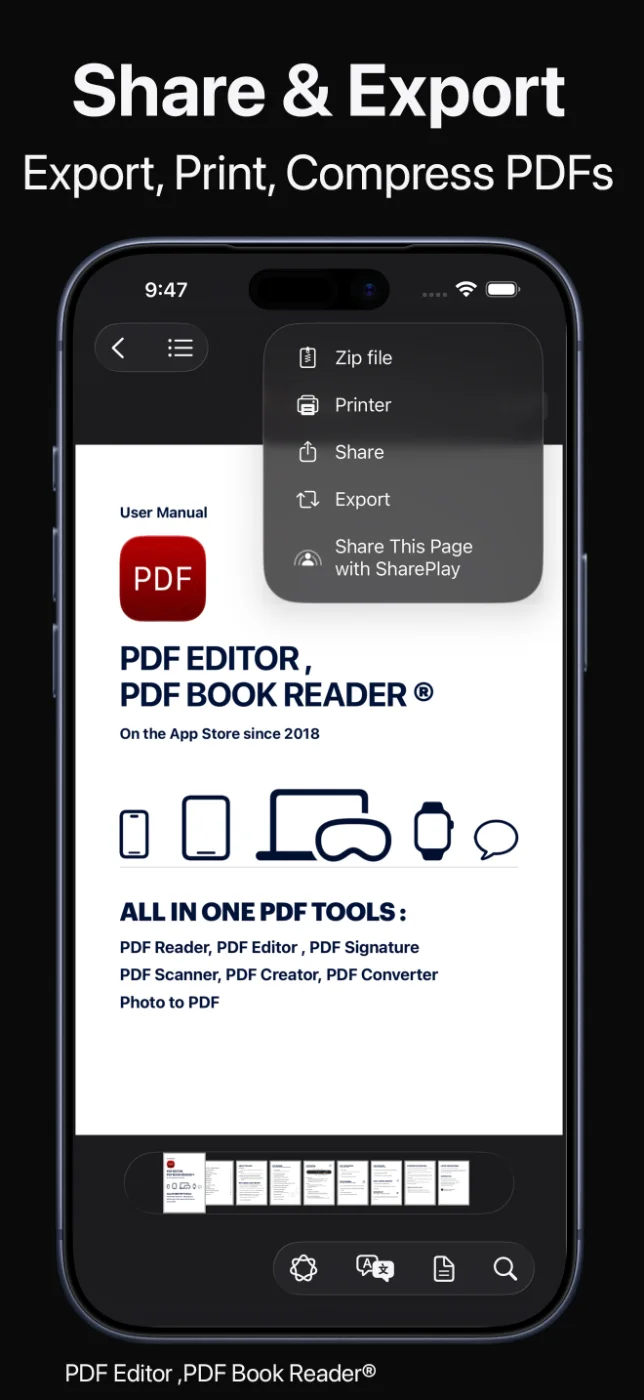
Create ZIP archives, print, and share through AirDrop, Messages, Mail, and more. Deleted files go to Recently Deleted, so you can restore them.
Less tapping. More done.
iCloud
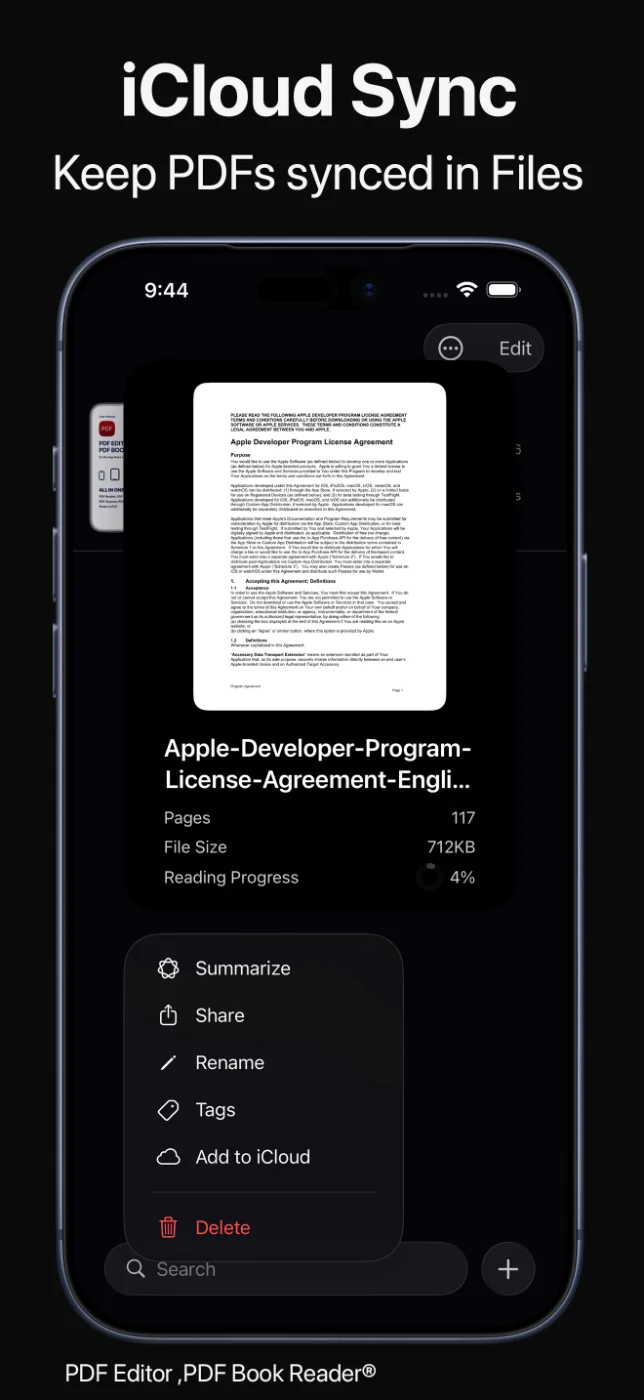
iCloud sync keeps your documents and their organization available across your iPhone, iPad, and Mac.
Rename a PDF and its tags and bookmarks stay with it, document info shows page count, file size, and sync status, and Spotlight can find documents by their description.
Organized once, everywhere.
How it works
Import files, scan documents, or open PDFs from iCloud Drive.
Add color tags and categories, or accept Apple Intelligence suggestions.
Sort by name, date, size, or tag, and filter by tag or category.
Use bulk actions, ZIP archives, and Recently Deleted to manage files.
Available tools can vary by device and app version.
FAQ
Quick answers about organizing your PDF Library in PDF Editor, PDF Book Reader®.
Add color tags and categories to your PDFs, then sort by name, date, size, or tag and filter your Library in a tap.
Yes. iCloud sync keeps your documents and their organization available across your Apple devices.
On supported devices, Apple Intelligence can sort your PDFs into categories such as Books, Manuals, Receipts, Tickets, and Contracts, which you can use to filter your Library.
Yes. Deleted files go to the Recently Deleted folder, where you can restore them.
Yes. Bulk selection lets you share, tag, categorize, back up, or delete several PDFs together.
No. The App Store privacy label for PDF Editor, PDF Book Reader® is “Data Not Collected”, and no account is required. Your documents stay on your device, or in your own iCloud if you choose to sync them.
The app is free to download from the App Store and offers optional in-app purchases: monthly, quarterly, or yearly subscriptions, or a one-time Lifetime purchase. Some features may require a subscription or the Lifetime purchase, and one purchase unlocks the app across your Apple devices.
PDF Editor, PDF Book Reader®
Tags, categories, bulk actions, and iCloud sync keep every PDF within reach.
